We continuously aim on improving our platform that makes your tasks more simplified. Our software just got enhanced with new sets of tools designed to provide better visibility and smoother workflow. These updates helps you save time, reduce manual effort and manages your daily operation with more clarity. Take a look at what’s new and see how it adds measurable value to your business.
1. Trakzee Updates
1.1 Improved driver accountability in shared fleets
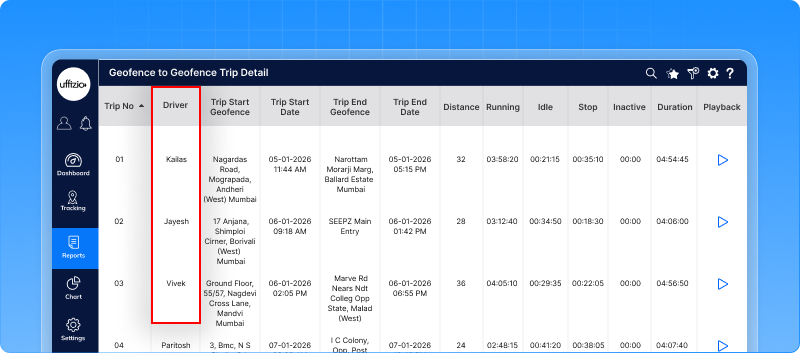
The geofence to geofence trip summary reports earlier showed only vehicle data. There was no visibility of which driver was operating the vehicle at a specific time. This created confusion in performance tracking and made it difficult to identify who was responsible in case of an incident.
To fill this gap, a new driver column has been added in the summary and detail reports. In the summary report, multiple drivers’ names will be displayed with separate commas while in mobile it shows count only. This helps fleet managers track the movement of the vehicle along with the driver name during the whole trip within the geofence location.
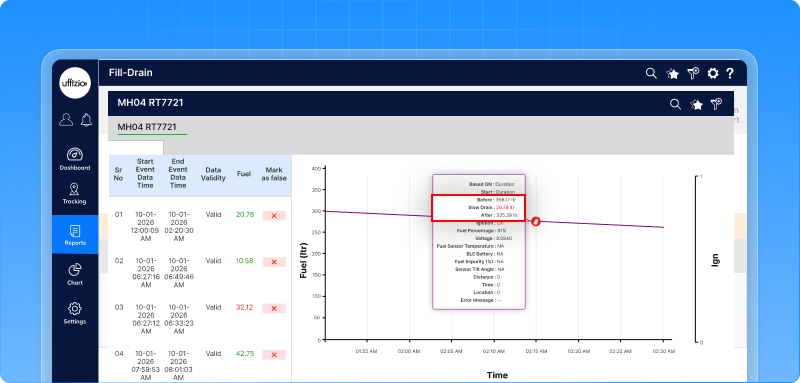
1.2 Fill drain report now identifies even minor fuel loss
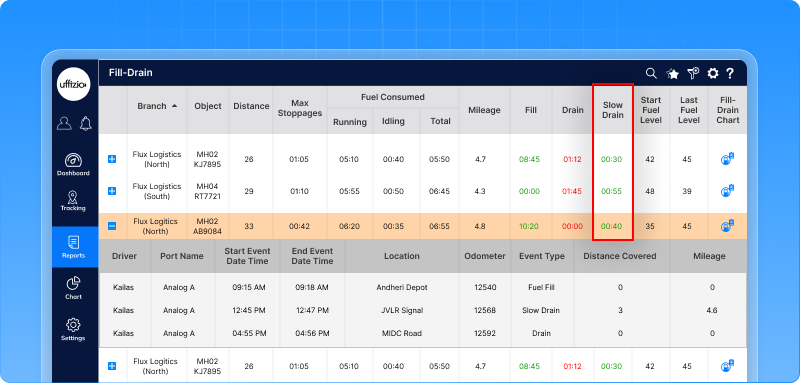
Managing slow fuel drain became easier. Earlier fuel fill drain report generated drain events only when fuel drop crossed the set tolerance limit. With this enhancements now you detect slow fuel drain when the vehicle ignition is off even when the quantity is below tolerance level. Now the system captures a small yet cumulative unauthorised fuel loss.
When micro drain is detected in stop mode, it will be marked orange on the fuel graph with detail information. This will improve fuel accountability and strengthen theft prevention. Now fleet managers can view these insight through separate events for better monitoring and control.
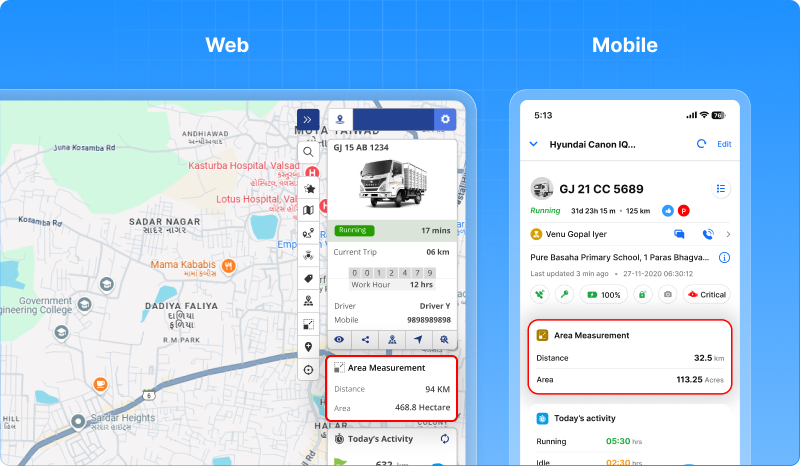
1.3 Instant area coverage insight on the live tracking tooltip
Now you can view area coverage details directly from live tracking through a new area measurement widget. The widget shows the total area covered by the vehicle on the current day, along with the total distance travelled similar to the reports. Users can now see information instantly without switching screens. The widget is available on web and mobile from where it can be enabled or disabled. This helps fleet managers to see real-time visibility during the field operations.
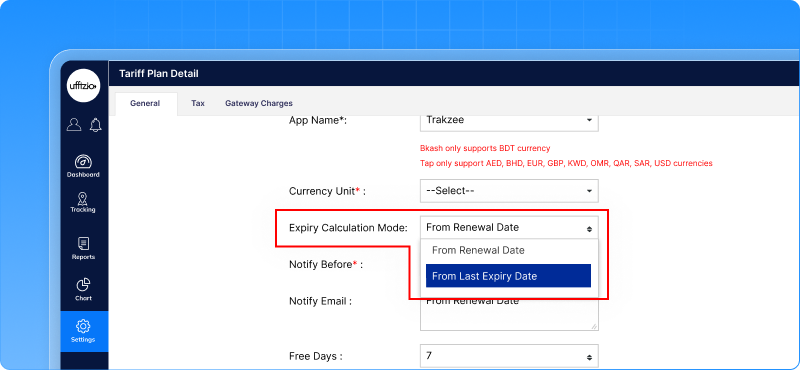
1.4 Tariff plans can be calculated based on expiry or renewal date
System integrators follow different billing models. Some offer bundle solutions with fixed renewal cycles while others prefer renewal based on actual payment date. Earlier, the system calculated the next expiry date from the renewal date. This made it difficult to match subscriptions expiry with their actual billing processes.
To address this, we introduced a flexible expiry calculation option in the tariff plan module. Now, system integrator expiry can be configured based on the renewal date or the expiry date. This allows them to manage subscription methods according to their business model. The billing cycle remains consistent and smoother working pattern.
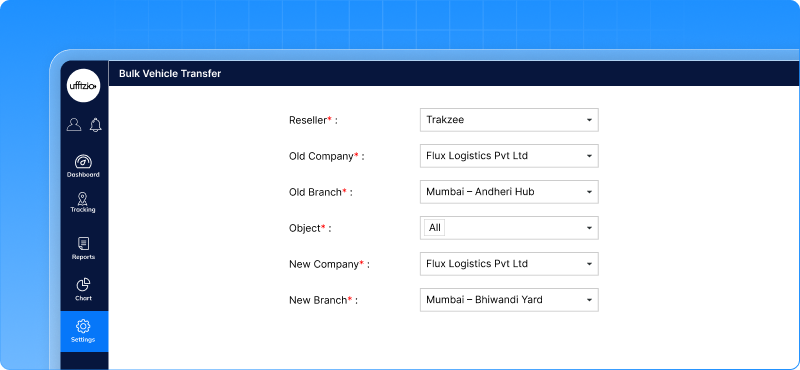
1.5 Transfer multiple vehicles in a single action
Earlier, users had to transfer vehicles one by one which was time consuming and created errors in the company. They had no option to transfer multiple vehicles at once. But now we have a feature that allows bulk vehicle transfer from where users can select a list of vehicles and transfer them from company/branch to another. The validation is applied for single vehicle transfer and this format is same for multiple vehicle transfer.
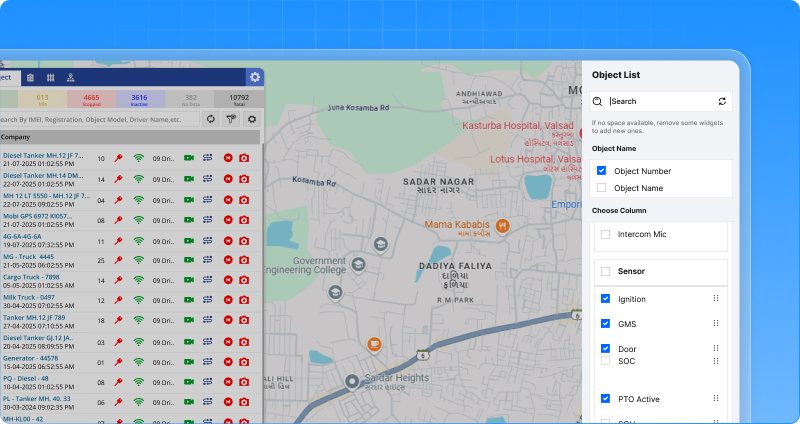
1.6 Customise the object list layout
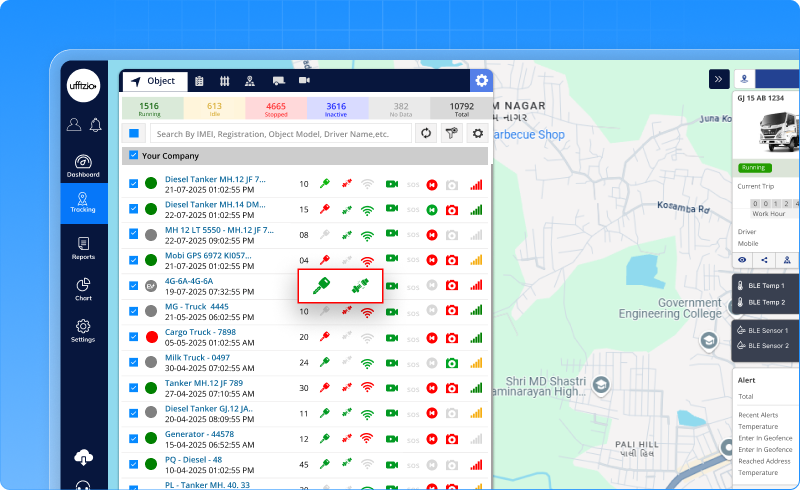
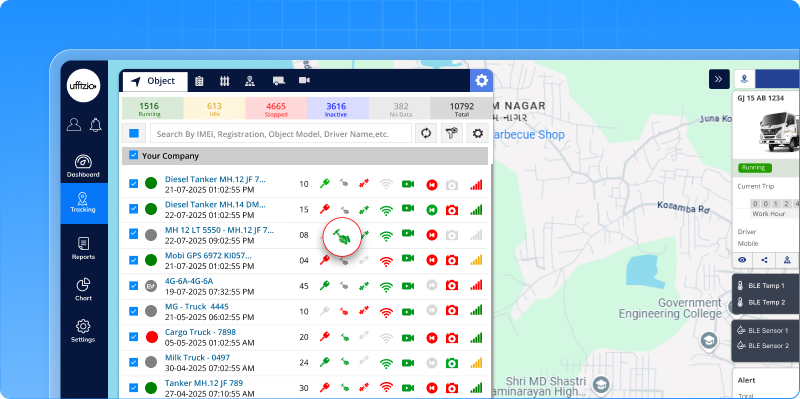
Earlier, the Object List action and status icons were displayed in a fixed order. Now, users can rearrange sections such as sensors, object activity, address and video telematics using drag-and-drop, based on what they want to see first.The selected order is saved and appears the same way every time the Object List is opened. This change improves visibility for data and efficient user experience.
1.7 Quick view of high-risk overspeeding vehicles
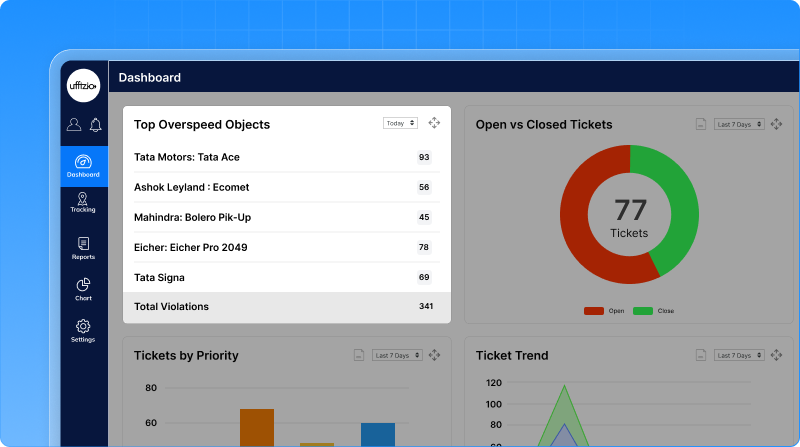
Overspeeding is a critical driving event that impacts fleet safety. Earlier, fleet managers had to view the reports that showed all vehicles data.This made it time-consuming to identify vehicles that had the highest number of critical violations that required immediate attention.
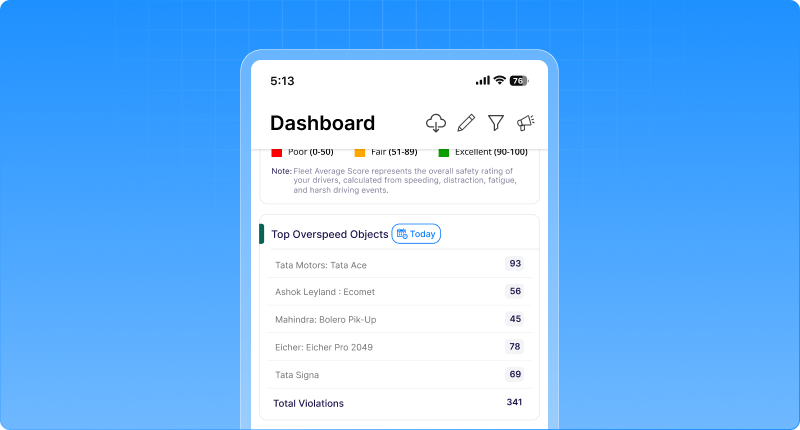
A new widget ‘ Top 5 overspeeding violation vehicle’ is now added to the screen in the dashboard at company level. This widget displays vehicle id and count of overspeeding violation. You can select the filter from the right-hand side which offers multiple date range options. It helps fleet managers to take initiative towards the drivers assigned to particular fleets during the trip.
1.8 Improve vehicle status accuracy with sleep mode control
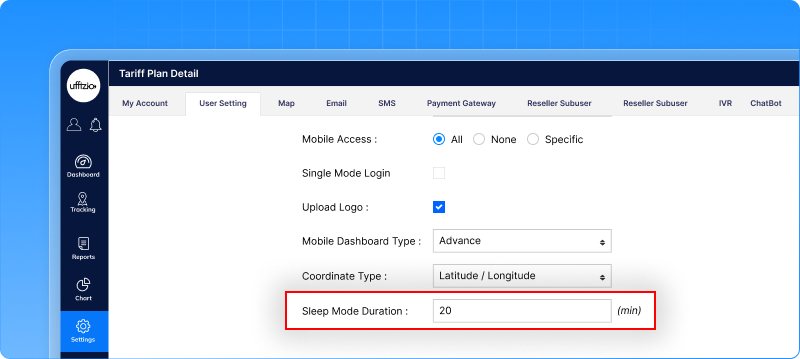
Tracking vehicle status just got simpler. Earlier, sleep mode configuration was available on vehicles only. We’ve introduced sleep mode duration configuration at reseller and company level. The new update ensures accurate vehicle visibility on live tracking and across the whole system. If the device stops receiving data it is marked as inactive.
Sleep mode can be manually enabled or disabled only when the vehicle is in idle, stop and running state. Object setting will be the first priority. If not configured, the system applies company settings, followed by the reseller settings. This helps to maintain accurate vehicle status and avoids confusion when incorrect data is shown.
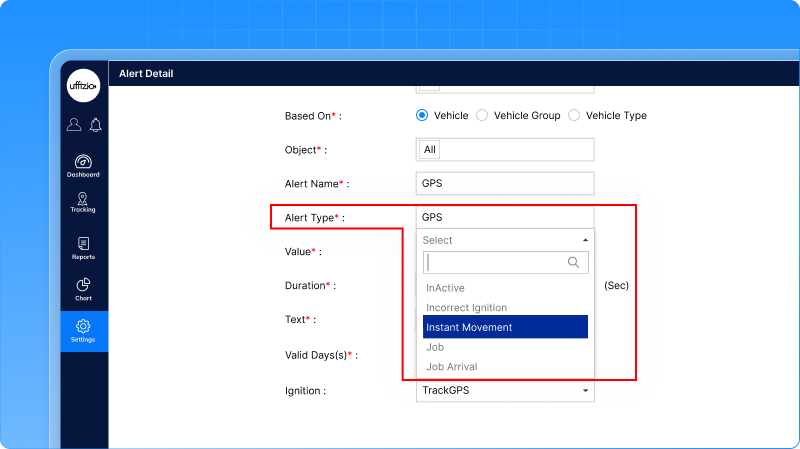
1.9 New instant movement alert introduced for vehicle
Earlier, alerts were generated for specific events. There was no instant alert when a vehicle started moving unexpectedly. A new instant movement alert has been added to detect vehicle movement.
What’s new?
- A new instant movement alert is available under the general alert category .
- The system will trigger an alert when any movement is detected from port 303.
- Users can receive notification alert via application, email and sms
- The alert will be enabled on web and mobile both.
1.10 Choose preferred coordinate type in user setting
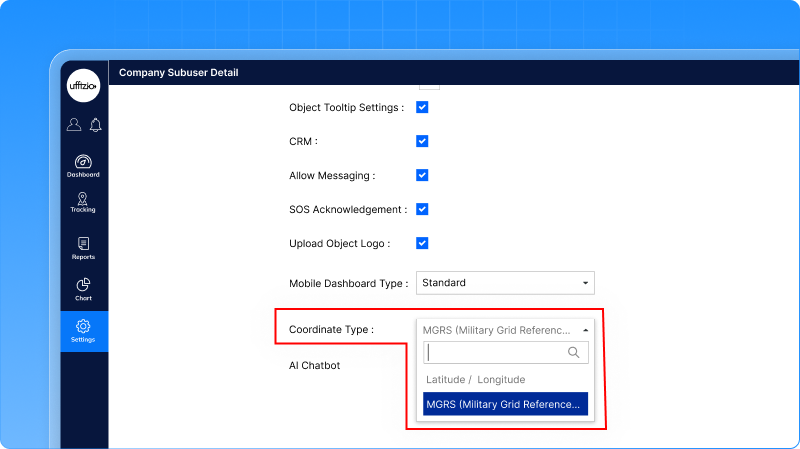
A new coordinate type setting is introduced to give users more flexibility in how location data is viewed across the platform. Earlier users had one option to display the coordinates through latitude/longitude format only.
What’s improved?
Users can now choose how the coordinates are displayed within the system:
- Latitude/logitude (default)
- MGRS (Military Grid reference system)
This setting is available under :
Settings->General->User->User setting
How it works
- The selected coordinated type is saved at the user level.
- All location data is displayed in the chosen format across the platform.
- When MGRS is selected, the system automatically converts latitude/logitude into MGRS using conversion logic.
- The selected preference is applied to all the coordinates- the screen , tooltips and exported reports.
Supports military, security and government fleets especially where MGRS is required. This gives clarity for teams working with grid-based location systems.
1.11 Greater clarity on drivers assigned to each vehicle
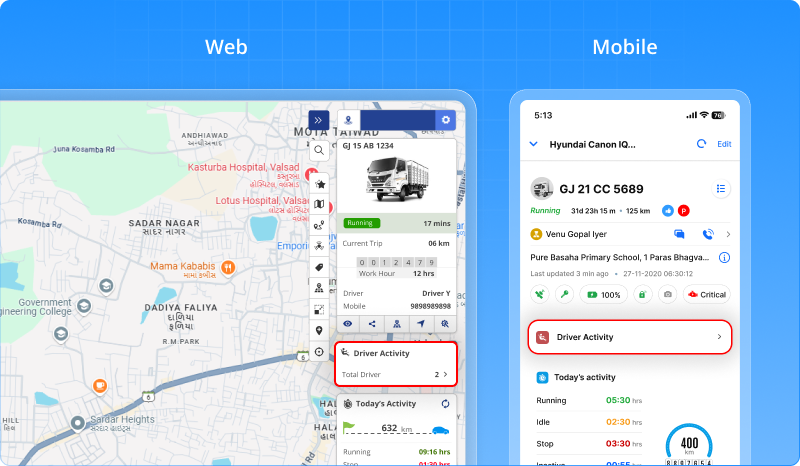
Sometimes, knowing details like vehicle name,location, speed and driver information isn’t enough to understand how a vehicle is used throughout the day. To fill this gap, a new driver activity widget is added to the tooltip section on the live tracking page. This lets users know how many drivers were allocated to a particular vehicle on the current day from the live tracking screen.
Clicking on the widget a popup screen will appear which show detail information about :
- Driver name
- Driver mobile no.
- Allocated from : date time
- Allocated to: date time
The functionality will remain the same just exactly as other widgets whether rearranging, visibility settings and save options. The setting set by a user will be an entirely mobile application with the same layout, order and visibility.
1.12 Better tracking with driverless driving alert for vehicles
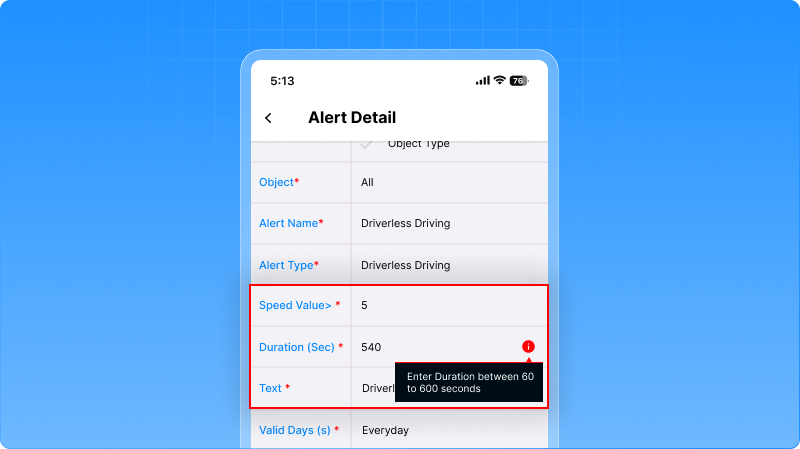
Fleet managers get real time visibility with the driverless driving alert added to the alert configuration section. These alerts help to detect and prevent unauthorised vehicle movement without an assigned driver and improve fleet security and control.
What’s updated?
- We’ve added a new field duration tolerance for clients so they can set number of seconds between 60-600 before the system triggers an alert.
- Get notified only when the vehicle continues running after it exceeds tolerance duration ahead.
- The alerts will be generated when the vehicle’s speed value increases from 5 (Default) and maximum value 120.
This enhancement is quite useful for teams when there is a need to take immediate action when suspicious movement happens. Minimize the chances of damage, misuse or theft.
1.13 Bulk object upload feature access for admin users
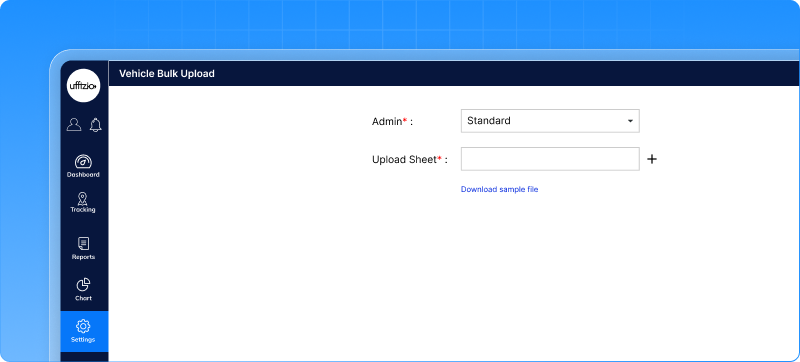
The bulk object upload feature is now available for admin users. Earlier, only super admin had access to this functionality. With this update, admin users can now upload vehicle data in bulk using the same screen, format, validation and processing logic already in place.
What’s improved
- Multiple vehicle data can be uploaded without dependency on super admin.
- The system automatically selects logged-in admin to prevent incorrect upload.
- The admin selection field is disabled to maintain account-level control.
1.14 Vehicle expenses now compared with approved budgets
In many operations, the amount spent on each vehicle is recorded but there was no fixed budget limit defined. Even overspending often went unnoticed and managers had to manually compare expenses with budget. There was no way to see the difference between actual expense and approved budget.
What’s new ?
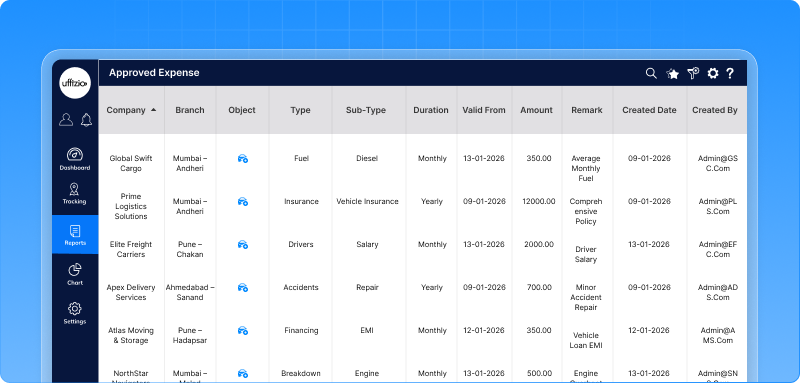
- Approved expense
An approved expense has been introduced in the object profile.
It allow organisation to:
- They can define a fixed limit for each vehicle.
- Decide how much expense must be spent on a vehicle.
- Control vehicle cost very clearly.
- Approved vs actual expense
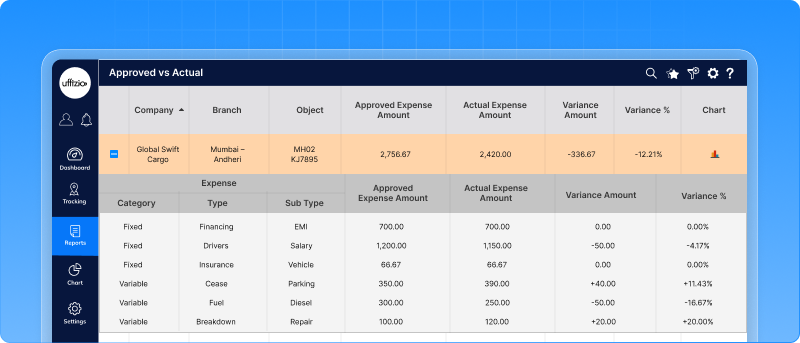
A new report is now added to support proper monitoring, it compares approved and actual expenses.It displays approved amount, actual amount, variance amount and variance percentage.
- Visual indicators make it easier to identify the condition in a single action.
🔴 Red – Over budget
🟢 Green – Matched
🔵 Blue – Under matched
- Expense chart analytics
The report also includes a line chart that shows the comparison between actual and approved expenses. These help users see the spending pattern and quickly notice if the expense is going above or below the set budget. Instead of looking at the numbers in the table. The reports can be exported via excel, pdf and csv format.
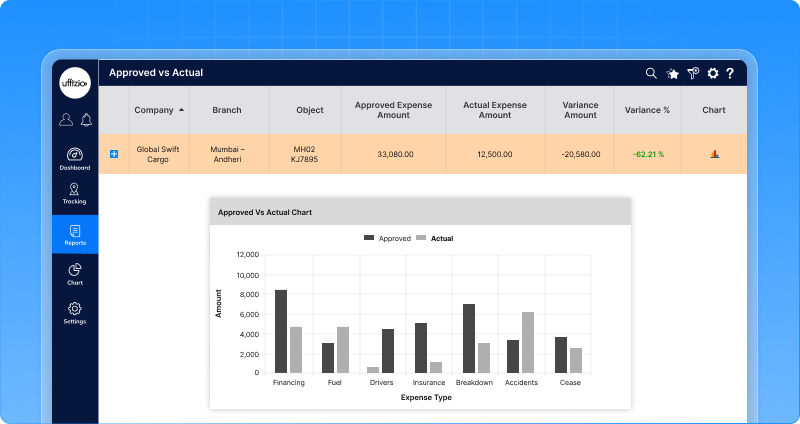
This enhancement helps in controlling cost and budget for every vehicle. Detects overspending early. It helps in making better informed-decision based on approved vs actual expense.
1.15 Automatic job share from the live tracking screen
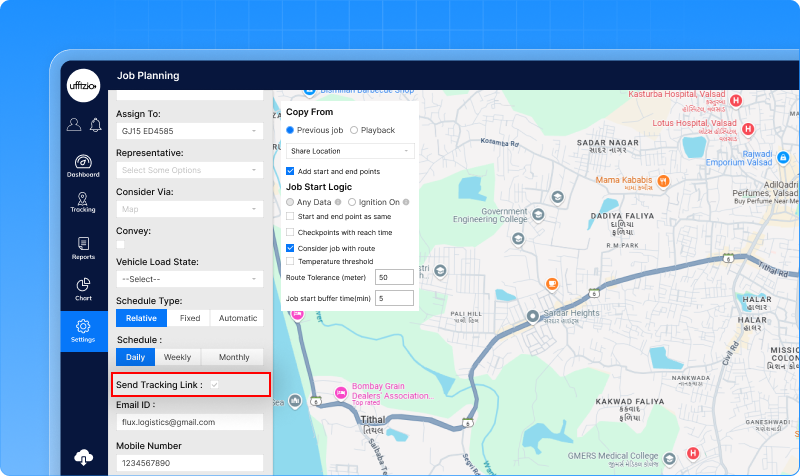
Until now, we had functionality to share the live location link from the live tracking screen once the job gets started. Initially, there is no option available to send tracking links automatically via Email, Mobile number or Chat ID. A new job share configuration has been added under Setting->Masters->Job planning.
Users can now configure:
- Send tracking link (checkbox option)
- Mobile number
- Chat ID
When the job status changes to running, the system automatically generates and shares the live tracking link. Once the job is completed, the system sends a Job Summary.
1.16 PTO values is now visible on the RPM chart
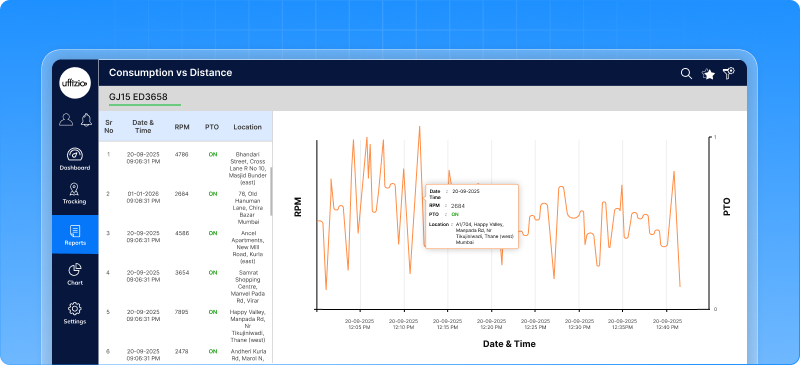
The RPM chart usually shows how the vehicle’s engine performs during the trip. Earlier only RPM values could be seen through the chart. With this enhancement, PTO values are visible on the RPM chart now as a separate data line. Users can select or tick PTO to show or hide the data on the chart. The value will be seen only if it is enabled. You can view the data from the left-side panel on the chart and can be exported in pdf format.
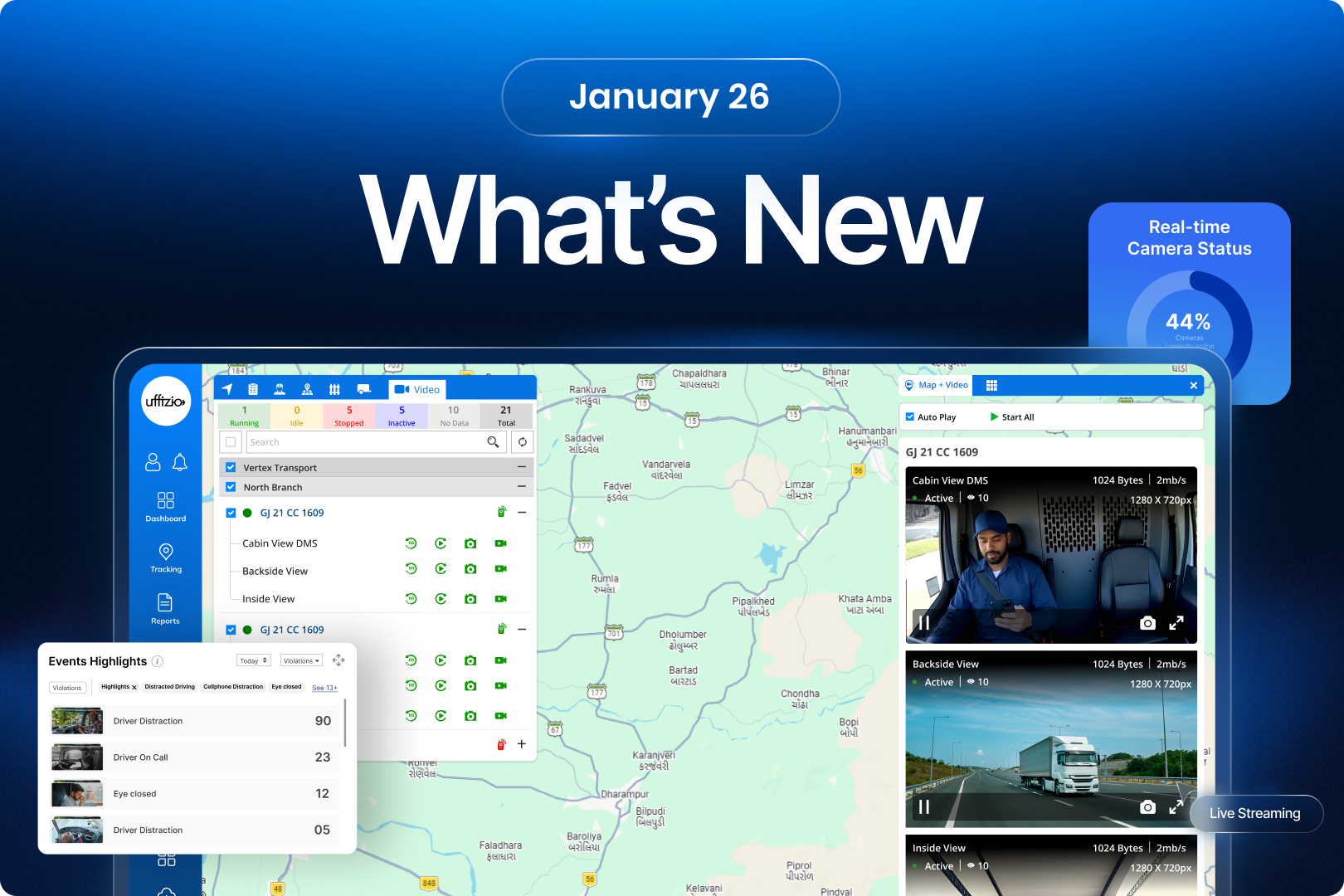
1.17 More video telematics insights now on dashboard
Fleet managers rely on video telematics dashboards to monitor vehicle safety. But getting a clear view of real-time activity, identifying risky events and which driver or vehicle needs attention was difficult. To address this challenge, we’ve upgraded the video telematics dashboard with new sets of widgets. This helps managers to act quickly, spot unsafe behavior and maintain safety across the fleets.
The updated dashboard now includes
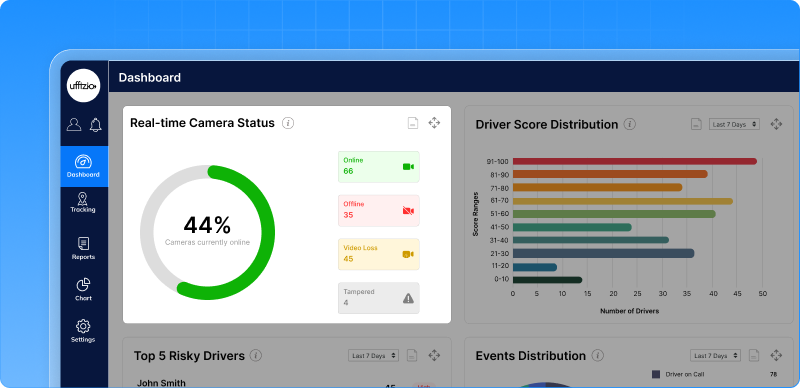
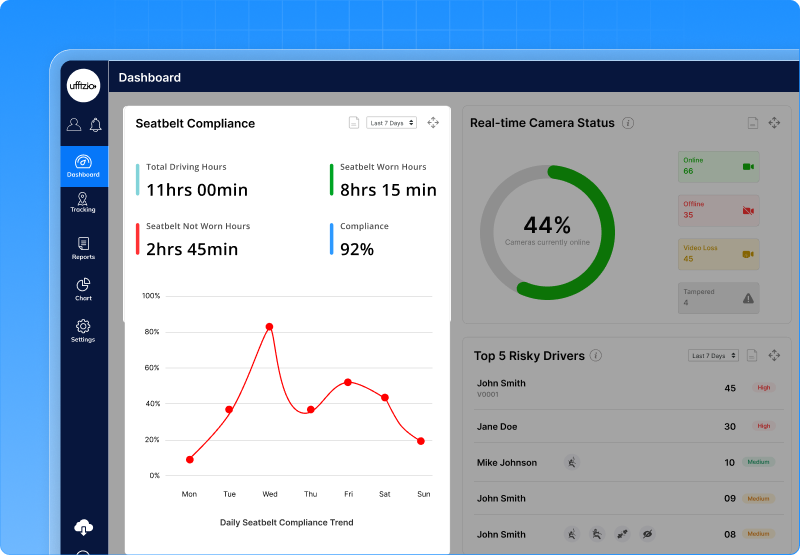
Real time camera status panel
- Show the live status of vehicle cameras across fleets.
- It indicates whether the camera is online, offline or malfunctioning.
- Helps managers identify camera issues and ensure the video footage is recorded every trip.
Alert vs distance graph
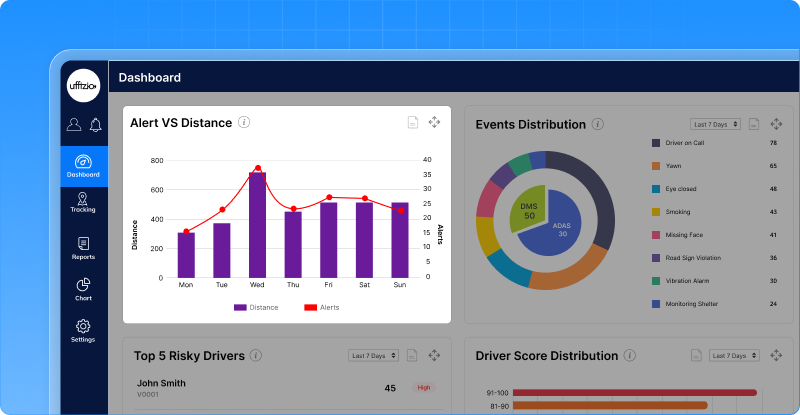
- This graph compares the distance driven and numbers of alerts generated over time.
- Helps to understand how alert volume changes with fleet activity.
- Support better analysis of driver behavior and safety trends through visual comparison.
Seatbelt compliance widget
- Shows the percentage of driving time where drivers are detected wearing seatbelt.
- Highlights non-compliant hours and related seatbelt alerts, making it easier to identify unsafe behaviour patterns.
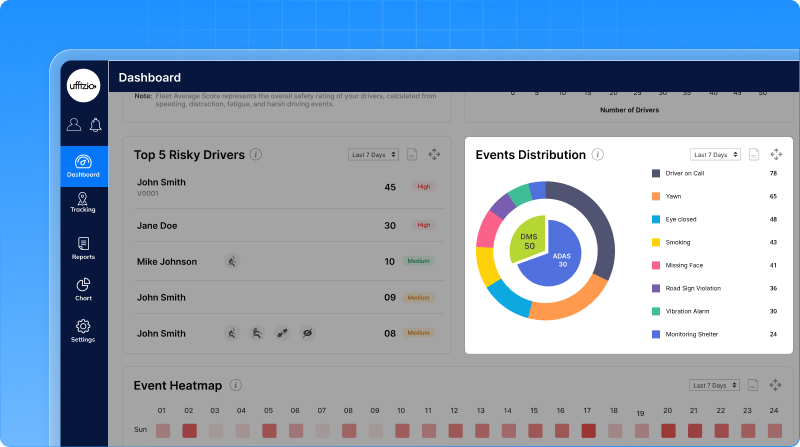
Alert type distribution
- Shows different types of alerts generated throughout the day with their percentage score
- Helps users understand frequent unsafe driver behaviour and take correct action.
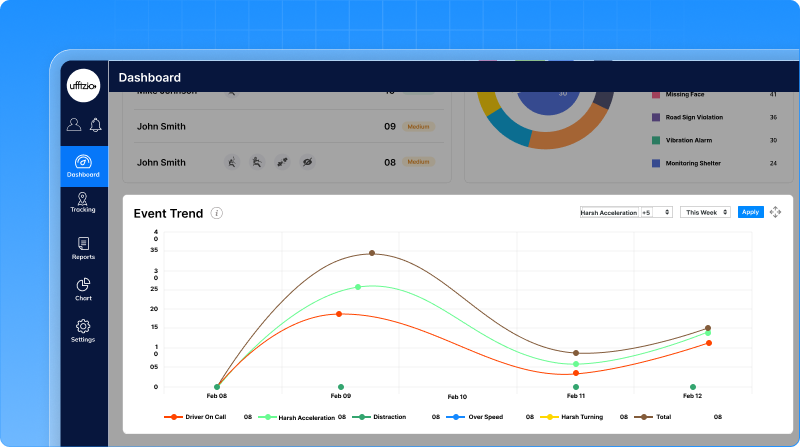
Harsh event timeline
- Highlights harsh events occurring per hour/day.
- Show at what time the driver drives more harshly often.
- Makes it easier to understand risky pattern based on time
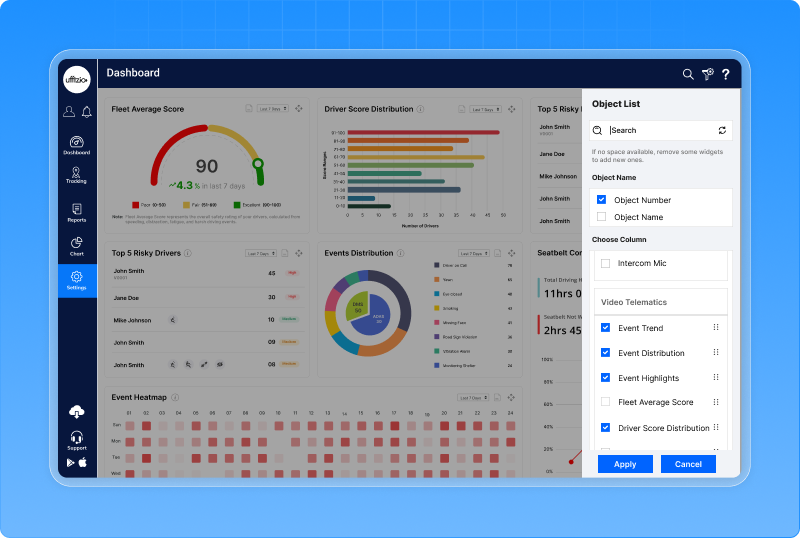
Customizable widget
- Now users can add, remove and resize the dashboard widget based on their preferences.
- Customize the dashboard layout according to your monitoring needs.
1.18 Smarter live tracking with video telematics
Live tracking is no longer just about where vehicles are. Modern fleets require solution that provide real-time visibility into on-road situation, driver behaviour and critical events as they occur. With this update, managers can now verify the events instantly without leaving the screen. This makes live tracking smarter and more efficient.
What live tracking show
Real time video feed
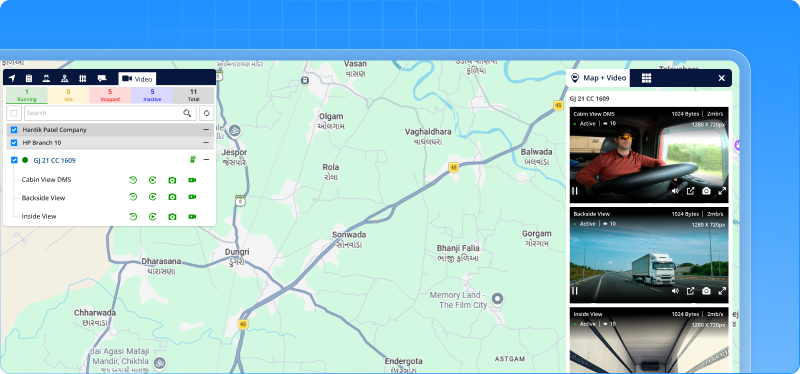
- Enables live streaming from front facing and driver-facing dashcam directly on the live tracking map.
- Instead of guessing why the vehicle stops, managers can immediately check distraction, collision ahead or driver fatigue and response faster.
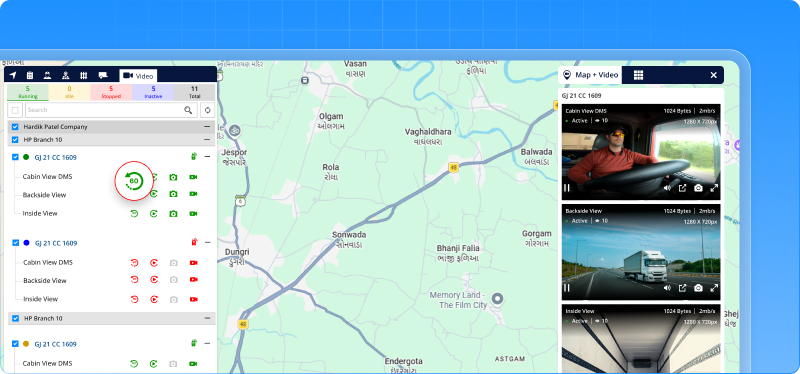
Replay last 60 seconds
- Users can now replay the last 60 seconds of video footage for any vehicle with a single click.
- This allows users to quickly review recent road activity without navigating through recordings or timelines.
- This feature helps to understand what just happened, supporting faster verification and timely action during live monitoring.
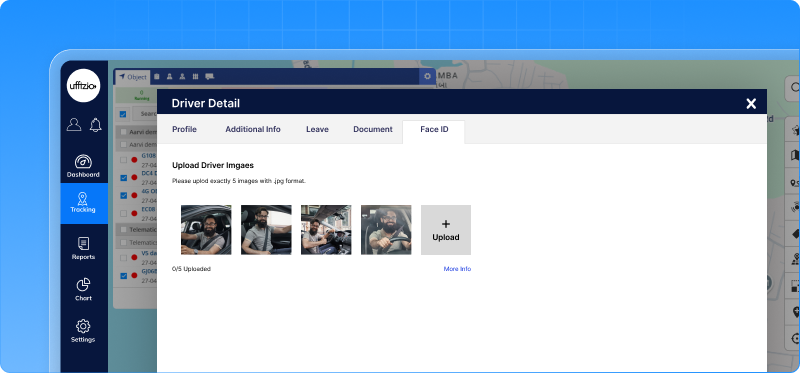
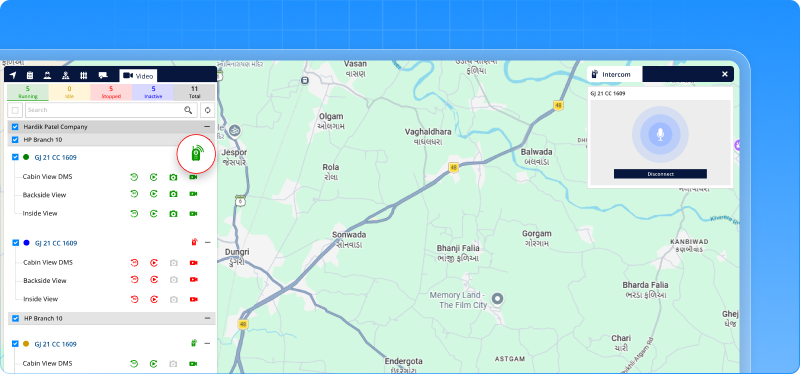
Driver recognition badge
- Displays driver photo along with name when detected by face recognition.
- Helps visually confirm who is driving the vehicle.
- This improves driver accountability and especially in shared vehicles.
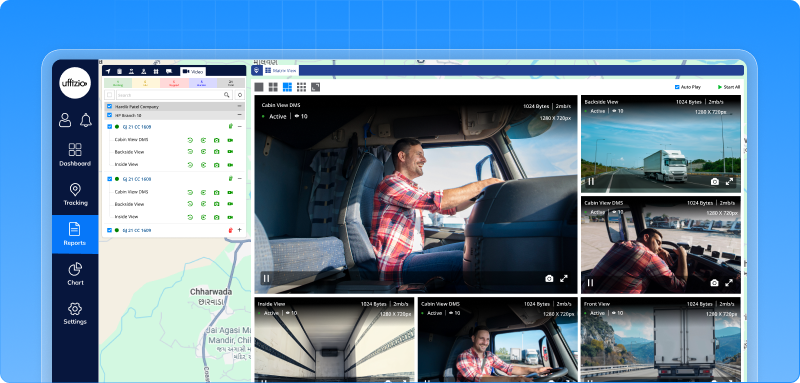
Multi-cam view
- Users can now see the multiple vehicle live streaming at the same time on screen.
- Enables faster supervision without switching between screens.
- Supports real-time monitoring across active fleets
Status bar on map
- Introduces a status bar on live tracking map showing vehicle and driver indicators such as ignition on/off, seatbelt status, fatigue and distraction etc.
- This makes it easier to track critical driving events for the vehicles on the move.
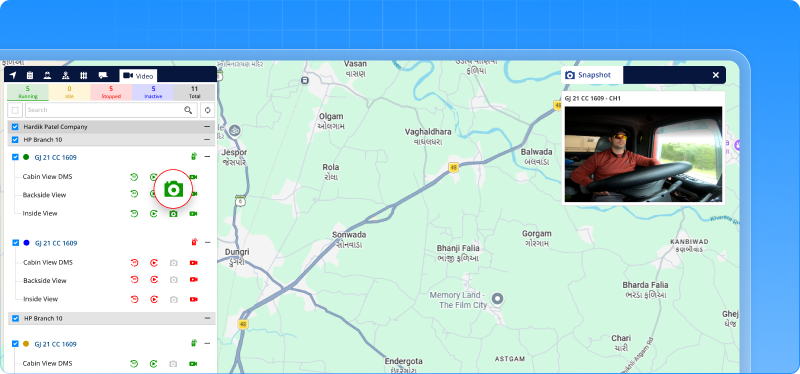
Screenshot capture
- Users can capture still image instantly from live video feed.
- The capture happens while the vehicle is being tracked in real time.
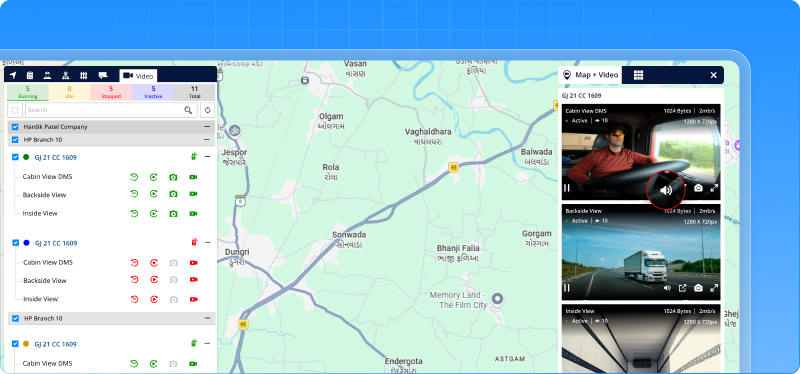
In-cabin audio stream
- Allows users to listen to real-time audio from inside the vehicle cabin and helps understand in-cabin situation.
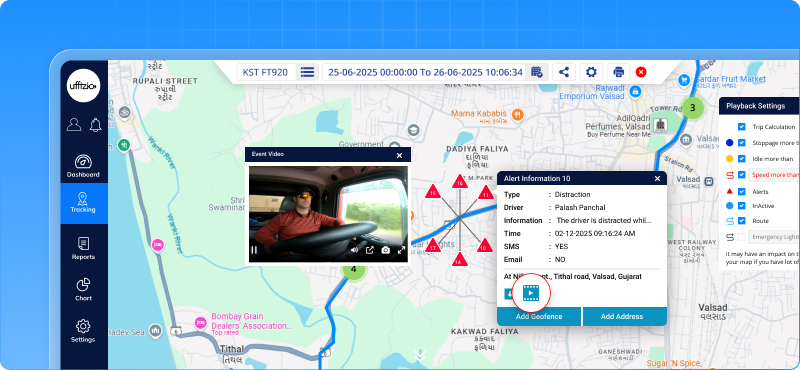
Video alert pop-ups
- Instant pop-up with video thumbnails whenever an event is detected.
Tamper alert warning
- Notify managers immediately when the vehicle camera is unplugged or disconnected.
- The alert is triggered as soon as the system detects an issue, helping users know that video monitoring might be affected.
- Ensures better camera visibility and prevents video footage loss.
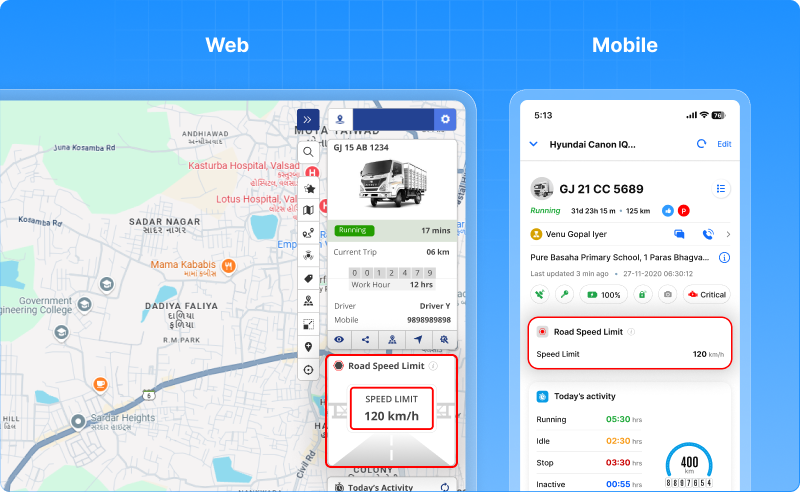
Speed overlay
- As the vehicle’s speed increases, it shows whether the vehicle is driven at safe driving, near the limit and overspeeding.
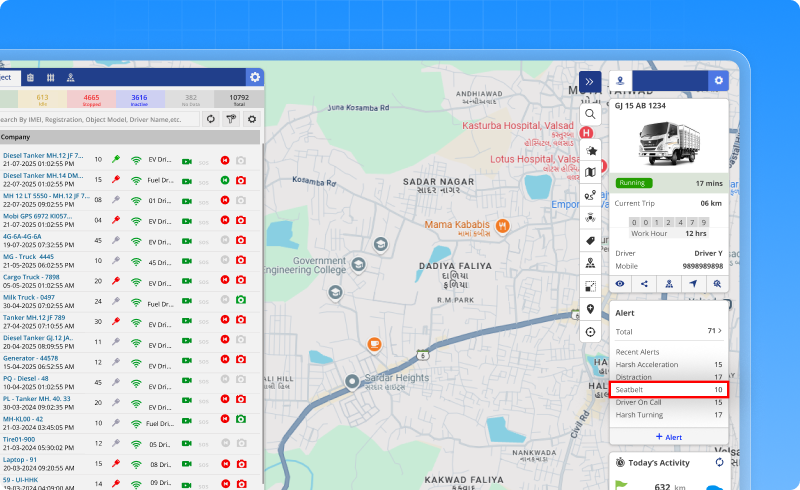
Seatbelt alert popup
- This alert popup appears on the live tracking screen when the system detects the driver is driving without wearing a seatbelt during the trip.
- Managers get instant visibility into seatbelt violation and reduce risk of serious injury or death during an accident.
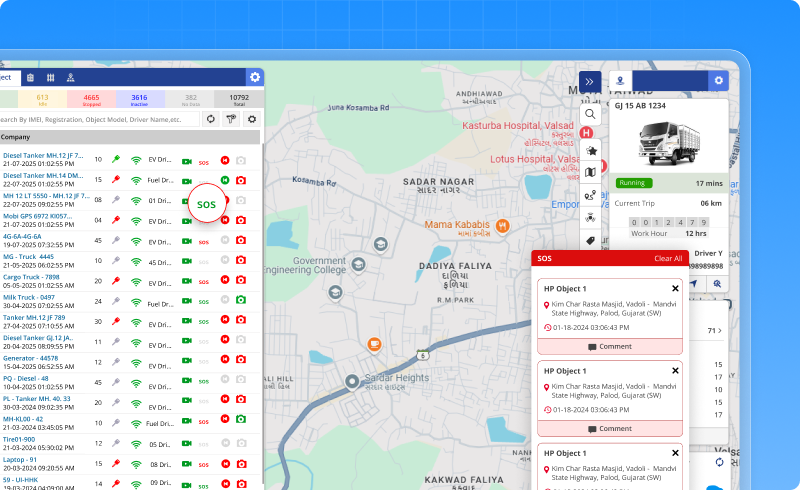
SOS/Panic button status
- Shows SOS status on the live tracking screen, making it easy to identify the vehicle that needs immediate attention.
- Helps managers to locate the vehicle instantly and dispatch the emergency or support service quickly.
Two way-audio
- Enables communication between the driver and control room at the time of critical situations.
- This two way-audio helps to assist the driver with warnings, instructions and support when needed.
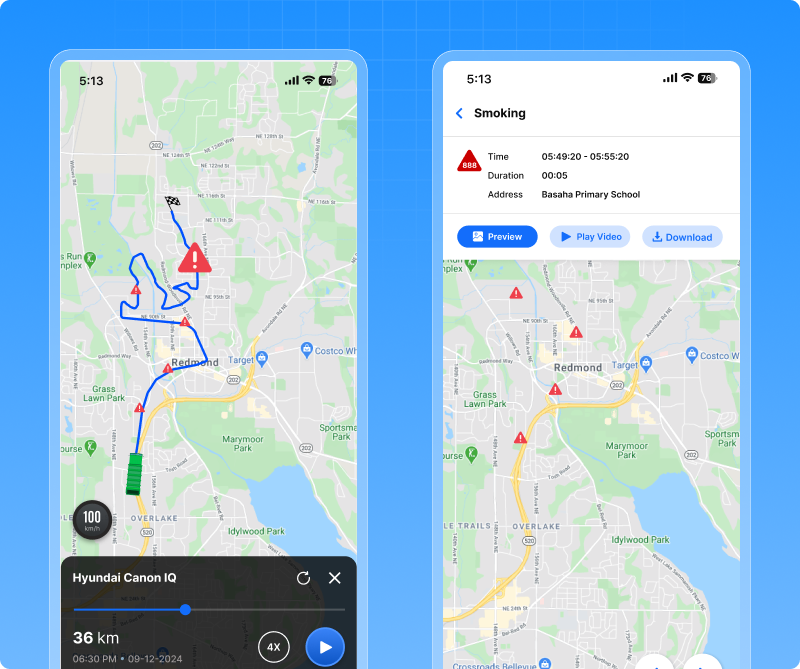
Live route playback
- Highlights the current trip along with the vehicle speed and events.
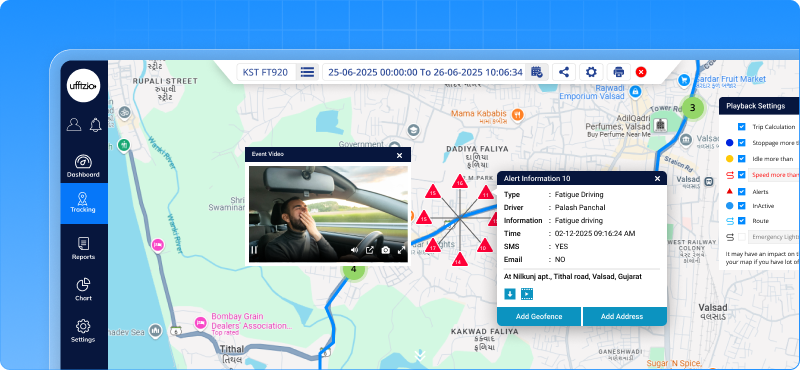
Fatigue alert banner
- Receive an alert when the driver shows signs of fatigue based on eye-closing pattern or long duration driving.
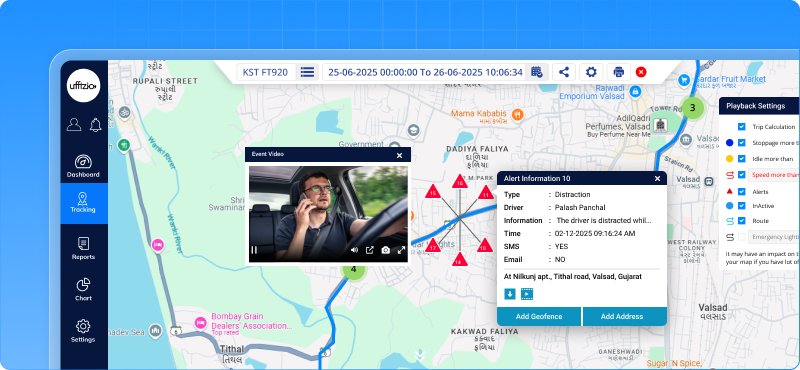
Distracted driving trigger
- Detects when a driver is seen using a mobile phone while driving and flag an event as distraction.
- Flags distraction when the driver is observed turning head instead of focusing on the road.
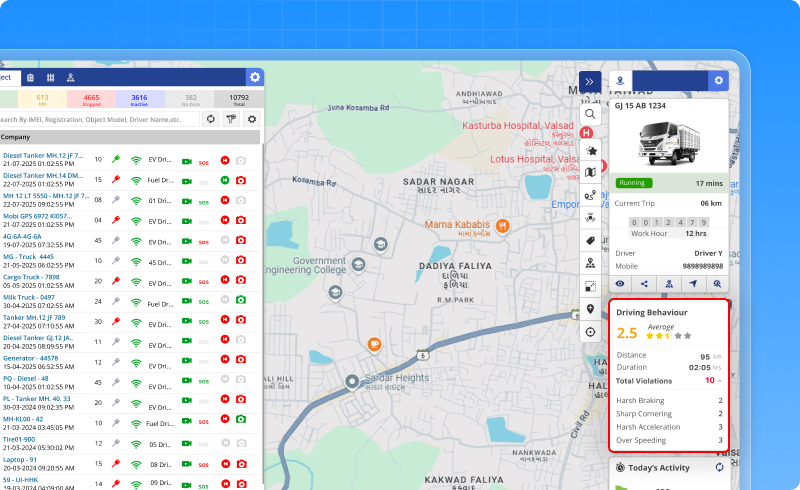
Live driver score indicator
- Shows the live score of the driver based on how the behaviour changes on the current trip.
1.19 New enhancements in video telematics reports
Managing fleet operation does not end with live tracking. Reports play an important role in analysing events, reviewing performance and ensuring correct action is taken. We’ve have introduced new and improved reports that provide better clarity into safety events, alerts and monitor driver performance in more organised way.
Updated reports now offers clear insight
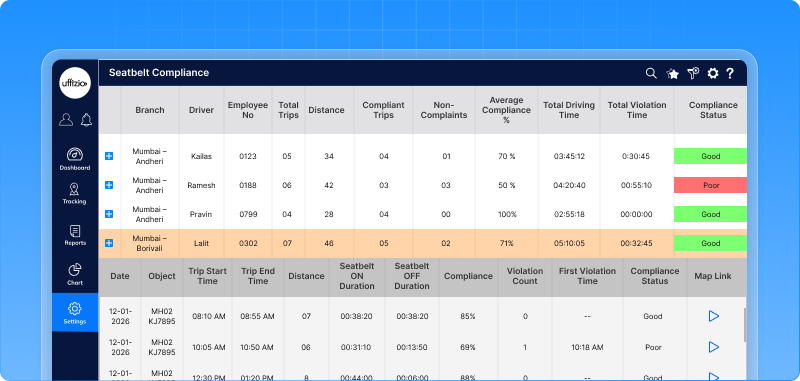
Seatbelt compliance report
- Shows seatbelt usage report as per trip-wise and driver-wise and helps to understand whether drivers are following seatbelt safety rules.
- Identify seatbelt violation across trips with the assigned drivers.
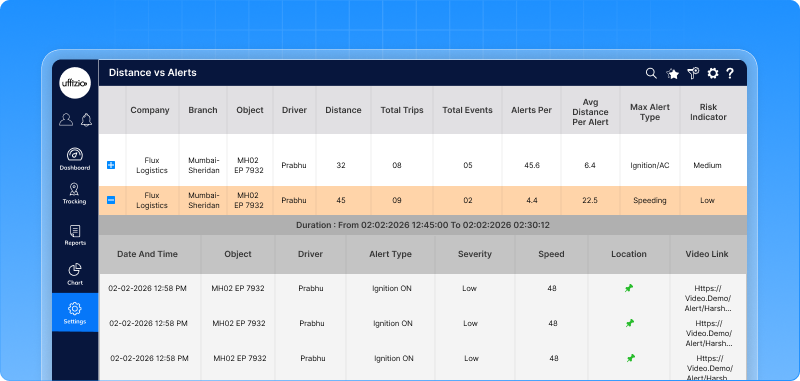
Distance vs event report
- The distance vs event reports helps identify vehicles and drivers with highest alert per km. Comparing the distance travelled with frequency of alerts events generated over selected period of time.
- Enables distance comparing even when the distance converge is low
- Supports safety scorecards and performance analysis. Detects abnormal alerts for short trips and low-mileage.
- Helps managers conduct coaching sessions and compliance analysis.
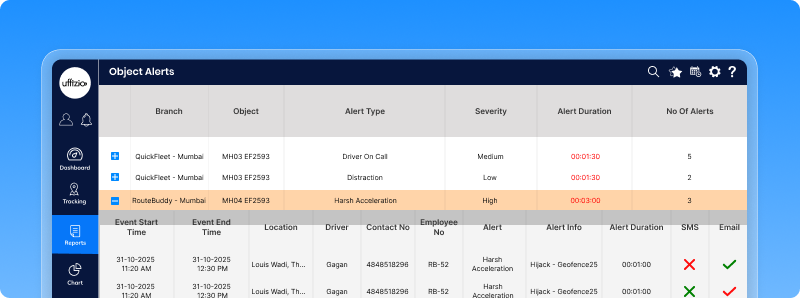
Daily alert report
- The daily alert report automatically collects all live video alerts generated in a day and shows them in a single report including time, vehicle and driver name.
- This saves time for daily review and gives clear visibility into fleet safety.
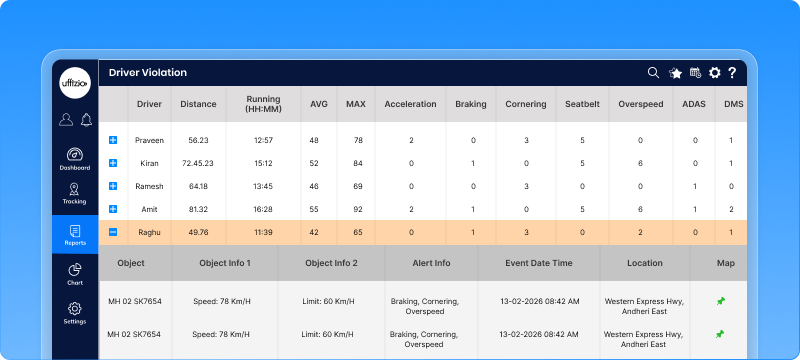
Driver incident report
- The driver-wise reports show safety events linked to specific drivers, along with event details, thumbnails and driver scores.
- Makes it easier to identify drivers when an incident happens instead of checking multiple vehicles.
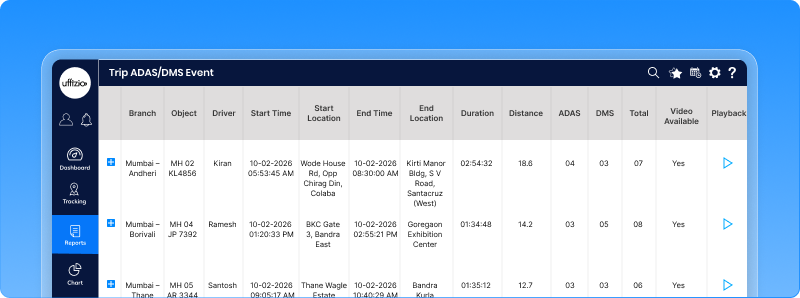
Trip report with embedded events
- A new trip ADAS/DMS report is now available, improving trip-wise visibility of vehicle movement.
- The report shows route playback, event marker and video clips in a single view for better trips analysis.
- ADAS and DMS events are counted and classified with trips .
- Users can access the video link for playback directly from the report and can be exported in Excel and pdf format.
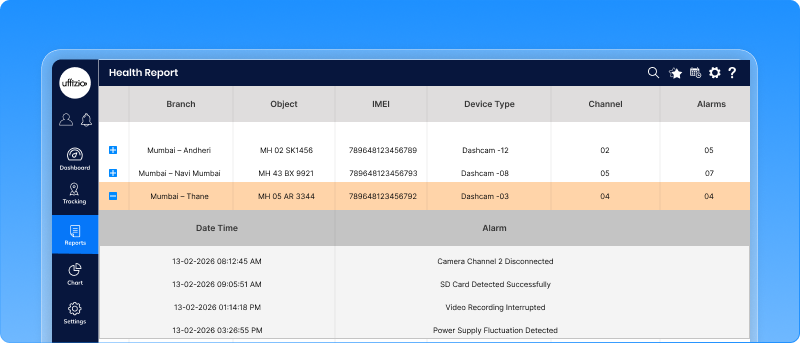
Camera health reports
- The report shows the current and recent status of cameras installed in vehicles, including whether they are online, disconnected or malfunctioning.
- Prevents data loss by identifying the camera issue early.
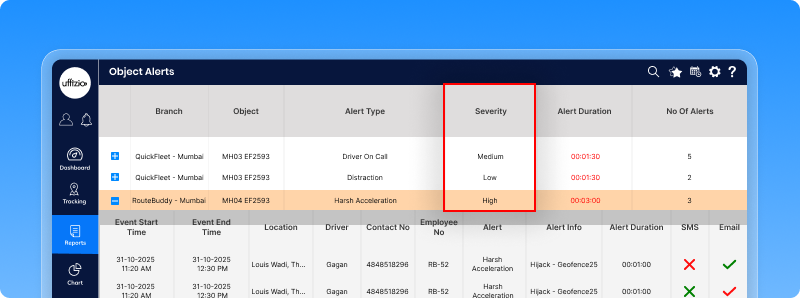
Alert severity summary report
- This report classifies video events based on high, medium and low severity levels.
- Provides a summarised view of multiple events distribution in a single report.
- Helps managers to identify and act on the high risk incident.
Video link audit trail
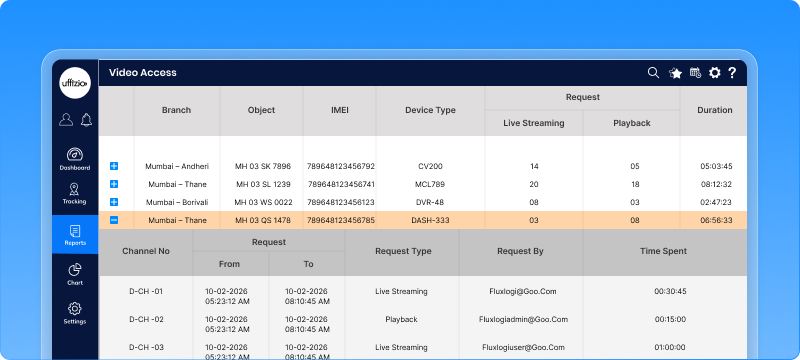
- The video link audit trail shows all logs of action performed on live streaming like viewing, downloading or flagging videos. It shows who has access and what action was taken.
- Improves control, compliance and accountability for video evidence.
2. Smartwaste Updates
2.1 Vehicle condition report added under report section
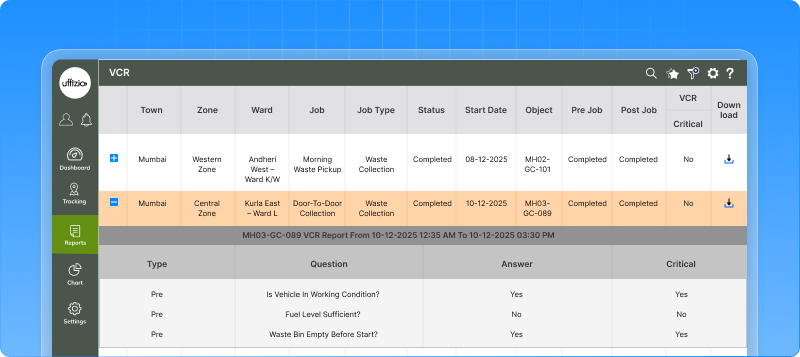
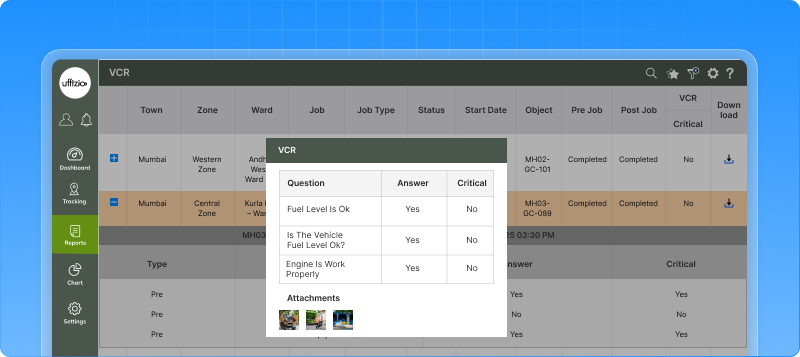
We’ve added a new report in Smartwaste to help fleet managers monitor vehicle condition for each job and vehicle.
What’s updated?
- They can monitor vehicle status from pre-job and post-job in a single report.
- Report data can be filtered by job name and date range.
- You can add attachments like images and documents with VCR answers.
- Users can download complete VCR report in pdf format
2.2 Collection address tag status is now simplified
Identifying the right collection address is now easier in the surveyor application. At first it seems identical on the map making it difficult to understand whether the right tag is installed at locations. To improve the visibility and usage, the map view has been enhanced to visually differentiate collection addresses based on tag installed status.
What’s improved ?
- Collection address with a tag installed (tag with number) shown in one distinct colour.
- Collection address without a tag installed (tag without number) shown in different colours.
- The differentiation is driven by absence or presence with the tag number.
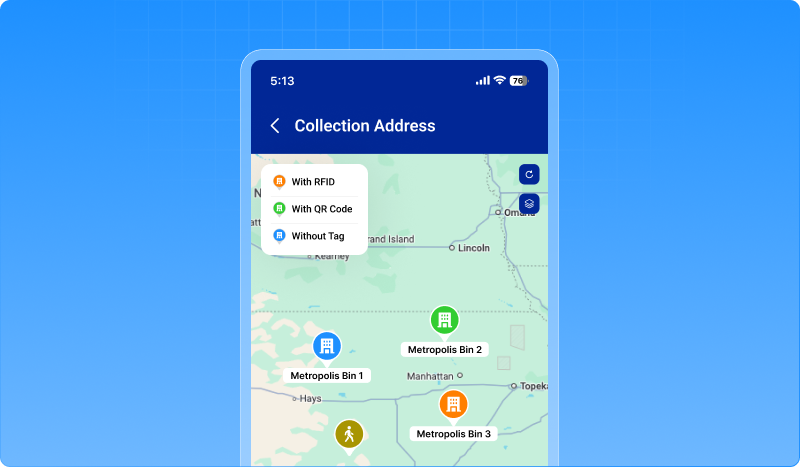
This update allows surveyors to identify tagged and non-tagged locations on the map and reduce confusion and improve efficiency during field operations.
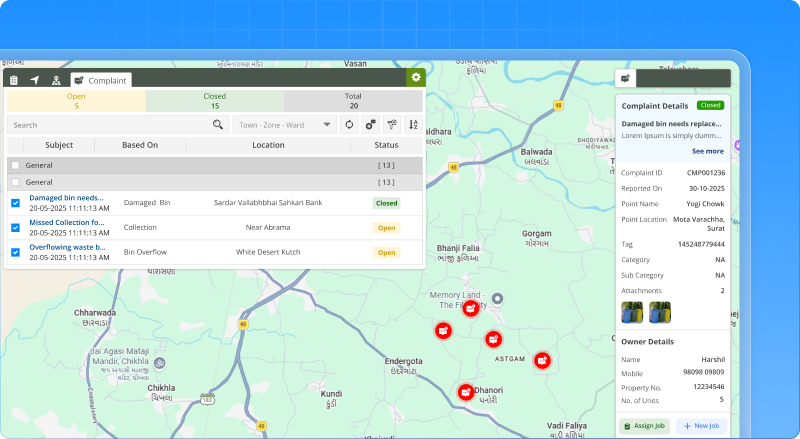
2.3 New Complaint module created on live tracking screen
The complaint module is now integrated into the live tracking screen to simplify operations. With this enhancement, users can view and manage complaints in real time while tracking vehicles and field activity. A new complaint tab is added to the object list inside the live tracking screen.The system allows status (open, closed, total) with search bar and filter options.
Existing complaint screen opens up when clicked when the ‘add compliant ‘ icon is clicked Detailed complaint information is visible on the right-hand side panel where cards show subject, location, category, attachments and owner details.
Complaint can be :
- Assigned to existing jobs with map-based selection
- Added to new job if necessary
- Marked resolve once the action is completed
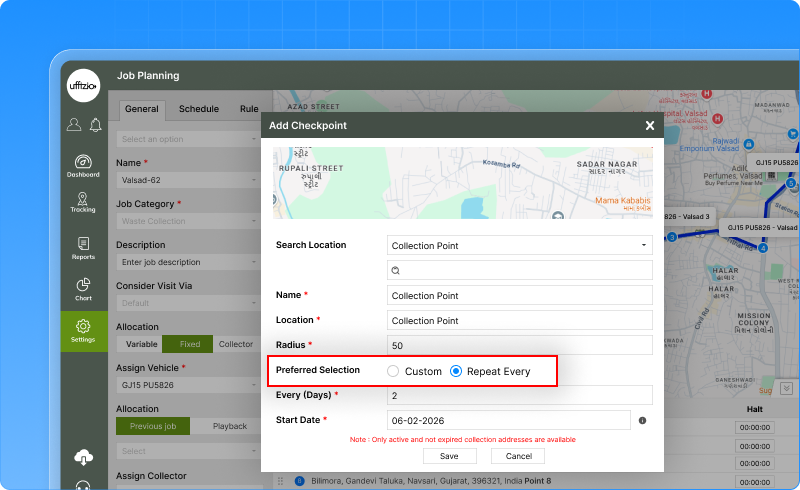
2.4 Checkpoint level start date for repeat every selection in fixed allocation jobs
In waste collection operations, different service areas may have different start dates. Earlier, when using the “Repeat Every” option in fixed allocation jobs, all checkpoints followed the same job start date. If the job is scheduled to start in the morning, even restaurants or market checkpoints have to follow the same job-level start date, which did not match their actual start date.
To address this challenge, checkpoint-level start date has been introduced. Now each collection area follows its own start date. This makes scheduling jobs accurate, reduces confusion for field teams and avoids unnecessary changes.
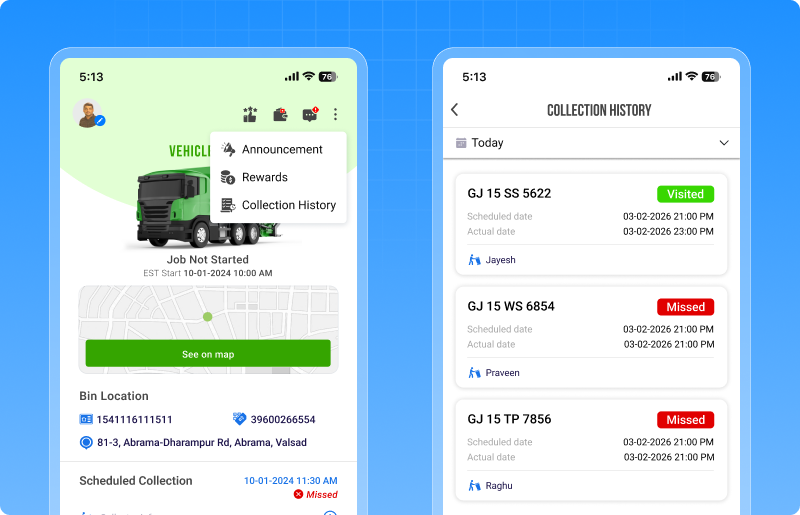
2.5 Collection history and collection address details added in citizen application
Citizens often raise complaints regarding lack of clarity over past waste collection activities. Without visibility it becomes difficult to verify whether the service is completed or missed. Citizens can now view their waste collection history for the last 30 days directly in the application. This section shows scheduled collection date, collection status (visited or missed )and actual time of collection. Collection status can be identified based on colours.
Additionally, citizens now can clearly see Tag ID and property number after logging in. And if changes are made will automatically get updated in the Tag ID/Property mapping. This enhancement strengthens service transparency, minimizes repeated complaints, and builds better communication between citizens and municipal authorities.